Saturday, April 25, 2009
Business Report on Customer Satisfaction
I have created a business report on Customer Satisfaction after studying the findings that were published in The Straits Times, a newspaper publication in Singapore. I did it because I could not conclude anything from the results which are in numbers. Take a look and let me know which is better. To request for a copy of the report, go to this business report page.


Monday, April 20, 2009
Calculate Depreciation
I have just written a page on how to calculate depreciation with your worksheet. Hope you will like it.
Friday, April 10, 2009
New Excel Challenge
I have come up with an Excel Challenge for anyone who would like to find out how much they know about Excel. You can sign up for the challenge on this microsoft® excel test page.
Thursday, February 26, 2009
DateDif - An Excel's Age Calculator
Learn more about this unknown worksheet function that can help you calculate age accurately.
http://www.advanced-excel.com/age_calculator.html
http://www.advanced-excel.com/age_calculator.html
Sunday, February 08, 2009
SUMPRODUCT
When I first learned about the SUMPRODUCT formula in Excel, I almost dismissed it as a useless formula used by only few users. How often would anyone need to multiply 2 or more groups of numbers together and add up the results!?
To get to the story,..... go to our sumproduct page.
To get to the story,..... go to our sumproduct page.
Thursday, January 22, 2009
Budgeting
I have finally developed a personal budgeting template that will allow users to easily entered their budgeted and actual numbers into the template and have the numbers automatically captured into the pivot table reports. This is possible because I used some complex formulas that I "borrowed" from my corporate budgeting course. The template is to demostrate that budgeting can become very easy if you know how to use the right formula for the job. If you want to see the power of this complex formula at work, request for the budget template now!
If you think that the template is useful for your corporate budgeting exercise, feel free to contact me. I conduct the course in Singapore.
If you think that the template is useful for your corporate budgeting exercise, feel free to contact me. I conduct the course in Singapore.
Sunday, January 04, 2009
Excel Date
Excel stores dates as numbers with the number 1 referring to 1 Jan 1900. Understanding how excel date works is very important because it will help you present the date in different format and also help you in calculations. You can find out more about this and the date formulas in this page on excel date.
Friday, January 02, 2009
Tracking changes in a worksheet
Tracking changes in a worksheet is very simple. In this tracking updates article, we offer you 2 methods, one using conditional formatting and another through a readily available function in Excel. Go to our tracking changes page to find out more.
Wednesday, November 05, 2008
Code to display header from Database
For i = 0 To RS.Fields.Count - 1
ThisWorkbook.Worksheets("Sheet2").Cells(6, i + 1) = RS.Fields(i).Name
Next i
ThisWorkbook.Worksheets("Sheet2").Cells(6, i + 1) = RS.Fields(i).Name
Next i
Wednesday, October 22, 2008
2009 Calendar
What is the best way to create a calendar? Using a program you purchased from the internet, Get a free template from a website or key the dates in manually into an Excel spreadsheet?
How about having a template that has already been done up and all you have to do is to key in the year and the dates are populated automatically into the worksheet. You can add in the public holidays of your choice, even your own leave calendar and have it highlight auotmatically in the calendar. All this without the use of any programs, macros. Just by using formuals. If you think that this is a calendar that will meet your needs, go to this excel calendar page to download the template.
How about having a template that has already been done up and all you have to do is to key in the year and the dates are populated automatically into the worksheet. You can add in the public holidays of your choice, even your own leave calendar and have it highlight auotmatically in the calendar. All this without the use of any programs, macros. Just by using formuals. If you think that this is a calendar that will meet your needs, go to this excel calendar page to download the template.
Wednesday, October 15, 2008
Free Excel Calendar
I have an Excel Calendar Template that could show the public holdiays of any country simply by adding the dates into the worksheet. A good tool to plan for your activities in year 2009. You can click on the link for more info http://www.everydayexcel.com/excel_calendar.php.
Cheers.
Jason Khoo
Cheers.
Jason Khoo
Sunday, September 21, 2008
Discount Rate
I think in calculating PV or NPV, one of the most confusing part of the calculation is the determination of the discount rate. I used to think that discount rate is the interest rate. Now I have come to realise that it is not the case. Discount rate is the rate you use to determine whether a project is worthwhile taking. Discount rate takes into consideration the risk of the project. Take a look at this Net Present Value example and see if it could help to clarify the difference between discount rate and interest rate.
Tuesday, May 20, 2008
3 Important Attributes of an Excellent Budgeting Tool
The 3 important attributes of an Excellent Budgeting Tool are:
- Total Control of Template Layout and Easy Customisation
- Versatile Analysis of Data in Different Business Perspective
- Easy Consolidation of Data and Generation of High-Quality Reports
Find out more from this budgeting tool write-up.
Wednesday, May 14, 2008
Excel 2007 Conditional formatting bug
I was developing my Excel 2007 eCourse and trying out the conditional formatting that I stumble upon this bug. Maybe it's not, I don't know where to report it so I decided to publish this in my blog to see if somebody would like to provide an answer.
In the conditional formating bug file, take a look at cell B4. It is supposed to be red based on the condition set but it turns out green. Anybody can help?
In the conditional formating bug file, take a look at cell B4. It is supposed to be red based on the condition set but it turns out green. Anybody can help?
Thursday, May 08, 2008
Learn more about Excel 2007
How do you like the last post on Excel 2007? If you like it and would like to have more of it, I have good news for you. I am creating a brand new eCourse for you to familarise yourself with Excel 2007 and its FREE! If you interested, click onto this free Excel 2007 eCourse page.
Tuesday, April 15, 2008
How to activate Save As in Excel 2007
Hi,
If you are using Excel 2007 for the very first time, you might be stumped on where the save as function is. Because you will not be able to find the familar File Menu you used to see in Excel 2003 and below. So if you are ready to upgrade 2007, you might want to read this first so that you would not be caught off-guard. In here, we will show you the different ways you could save a file:
If you are using short cut keys, I have good news for you. All the short cut keys you learnt in the previous version applies in version 2007. So you would have no problem at all. For those who want to know the shortcut key to save as, it is function F12 or Ctrl + F2.
If you are used to the file menu, you can activate the save as function by clicking on the icon at the top left hand corner of Excel. See the picture below. In that, you will see the all familar list of functions when you click on the file menu in the previous version of Excel.
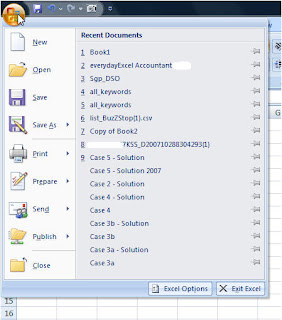
That's it for the Save As Function in Excel 2007. Do come back reguarly for new updates.
If you are using Excel 2007 for the very first time, you might be stumped on where the save as function is. Because you will not be able to find the familar File Menu you used to see in Excel 2003 and below. So if you are ready to upgrade 2007, you might want to read this first so that you would not be caught off-guard. In here, we will show you the different ways you could save a file:
If you are using short cut keys, I have good news for you. All the short cut keys you learnt in the previous version applies in version 2007. So you would have no problem at all. For those who want to know the shortcut key to save as, it is function F12 or Ctrl + F2.
If you are used to the file menu, you can activate the save as function by clicking on the icon at the top left hand corner of Excel. See the picture below. In that, you will see the all familar list of functions when you click on the file menu in the previous version of Excel.
That's it for the Save As Function in Excel 2007. Do come back reguarly for new updates.
Sunday, April 13, 2008
A new Life with Excel Budgeting
Are you going to start your annual budgeting exercise soon?
Are you getting ready to
- Protect the template to minmise the disruption to your consolidation effort?
- Check the templates filled up by the business heads in detail, making sure that the template layout is not changed in any way?
- Put the budget number in one single workbook so that you could consolidate the numbers by summing across the worksheets?
- Set up links to analyse the key expenses by departments, country, by month?
- Create links to another workbook for the executive summay and charts for you reporting?
- Create multiple sets of report for different managers, e.g product manager, channel manager, etc?
- Work overtime and during the weekends to get the budget out before the deadline?
- Run a few revisions of the budget and repeat the process for each revision?
If you are, I have GOOD NEWS for you!........More on Excel Budgeting
Tuesday, April 08, 2008
Does this describe your excel budgeting situation?
Mega Retailer Company (“MRC”) is one of the leading global distributors of consumer products. Their products are categorized mainly into 3 product groups, Food, Personal Care and Home Care. Its customer base ranges from Hotels/Restaurants to Supermarkets to your neighbourhood provision shop. MRC has local presence in every country in Asia Pacific. One or more companies are set up in each country to serve the local market.
You are the Budgeting Manager for MRC. It’s budget time again! :(
You are the Budgeting Manager for MRC. It’s budget time again! :(
Am I going to go thru the same old process again? Sending the templates......
If you don't want to, why not take a look at this brand new way of budgeting?
Sunday, March 23, 2008
Improved Find Function for use in VBA
Below is the improved find function which aske users for area to find and also choose whether they would like the function to return the cell address, row or column of the cell returns by the find function
Function Find_Address(What_2_Find, Where_2_Find, _
GetAddress_Row_or_Column As String)

' this is a range.
Value_or_Formula = xlFormulas
    'xlVaues - search the text/value in the cell,
        'for cells with formula, it will look at the result.
    'xlformulas - search the text/value within formula
    'xlformulas works even when cell is hidden.
    'It is able to look for value too.
Exact_Partial = xlPart
    'xlPart - find cells that contains (What_2_Find)
    'xlWhole - find cells which contains exactly the value
        'placed in (What_2_Find)

Match_Capital_Letters = False
    'False - when A and a is treated the same
    ' True when A and a means different things.

With Where_2_Find
    Set c = .Find(What:=What_2_Find, LookIn:=Value_or_Formula, _
        LookAt:=Exact_Partial, MatchCase:=Match_Capital_Letters)
    'c is the cell that meet your find criteria
    If Not c Is Nothing Then

        Select Case GetAddress_Row_or_Column
            Case Is = "Address"
                Find_Address = c.Address
                    ' Change this to c.column if you want
                        'the column
                    ' where the text is found.
                    'change it to c.address if you want the
                        'address returned.
            Case Is = "Row"
                Find_Address = c.Row
            Case Is = "Column"
                Find_Address = c.Column
        End Select
    Else
        Find_Address = "A1" ' Cannot find, so default
                                'the address to A1
    End If
End With

End Function
Subscribe to:
Posts (Atom)